PDFGen : Create, Combine, and Design PDFs in Your Browser
Create, combine and design PDFs right in your browser, without uploading your files.

PDFGen is our free PDF maker for the web. Add images and PDFs, put their pages in order, and design them with page numbers, backgrounds, watermarks and pages of your own text. One project can combine many files into one PDF or split them into several, and you don't need an account.
Everything happens in your browser, so your files never leave your device, and once you have opened PDFGen online it works offline too. Pages from a PDF are copied as they are, not turned into pictures, so their text stays sharp and selectable. A photo of a page can come out like a scan: PDFGen finds the edges of the paper, straightens the page and whitens it.
How it works
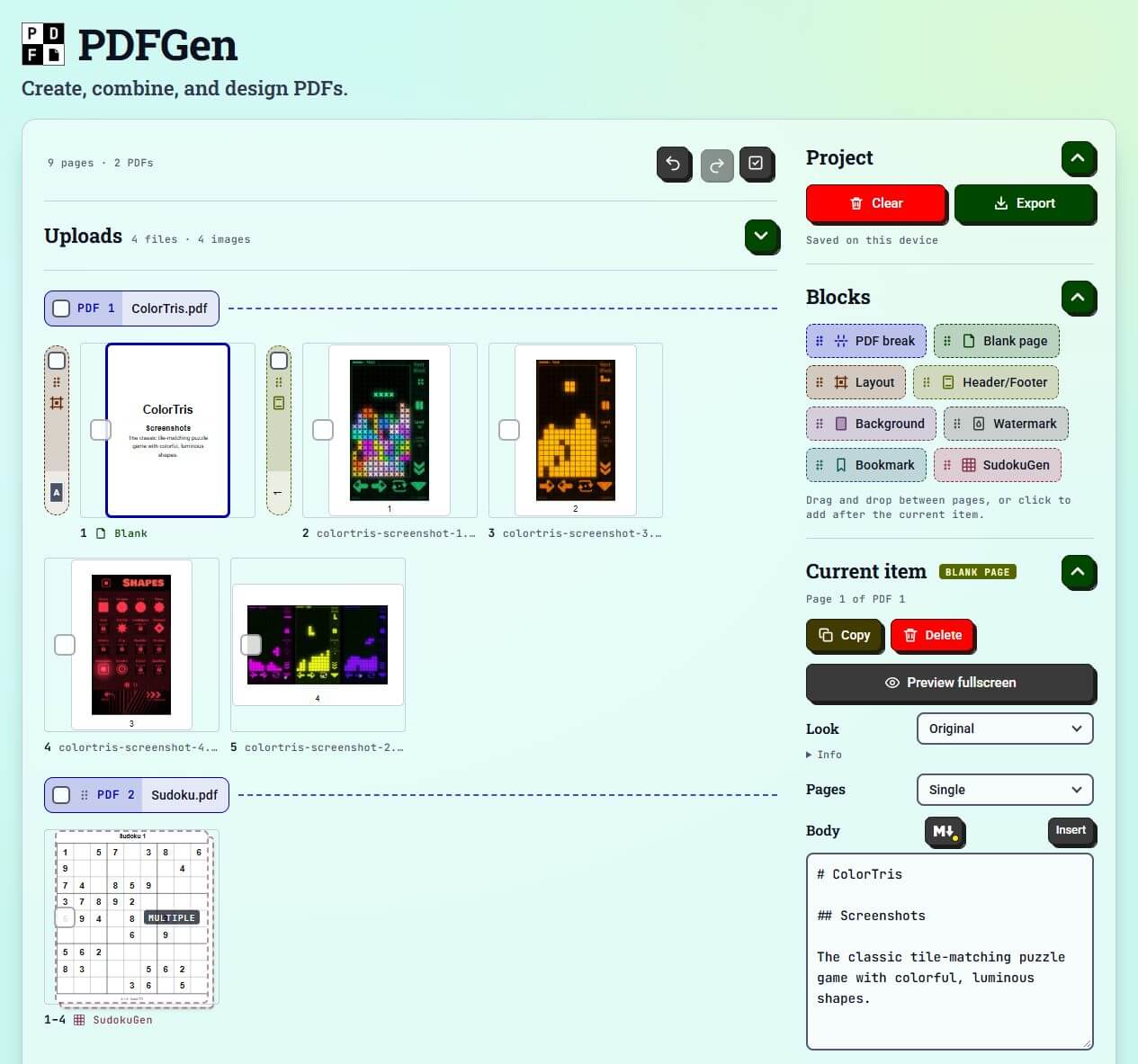
Drop or paste your files, or pick them with Add files: JPEG, PNG, GIF, WebP, BMP, AVIF and SVG images, HEIC photos in Safari, and PDFs. They wait in the Uploads panel, on your device, until you drag them into the page grid or use Add as pages, which can also take only some pages of a PDF, such as 1-3, 8. Each page shows as a card, just as it will print: drag the cards into order, rotate images and PDF pages, and add blocks between them. Generate PDF downloads the result, and several PDFs come as one ZIP.
Blocks
- PDF break: starts a new PDF, with its own name and settings.
- Blank page: your own text, plain or in Markdown, a simple way to format text with marks such as # for a heading. It handles headings, lists, task lists, tables, quotes, code, links and images.
- Layout: the paper size, orientation, margins and border.
- Header/Footer: text or an image at the top or bottom of the page, with placeholders such as
{page}for page numbers (1, 2, 3 or i, ii, iii), the date or the current bookmark. - Background: a color, an image or a pattern (lines, a grid or dots).
- Watermark: text such as "Draft" or an image, over the page or behind its content, once or tiled.
- Bookmark: builds the list of bookmarks that PDF readers show beside the pages.
- SudokuGen: puzzle pages made with SudokuGen, our sudoku library. Generate up to 50 puzzles at a time, from 4×4 to 25×25, or import one, with the solutions after each puzzle or at the end.
Layout, Header/Footer, Background and Watermark blocks shape every page after them in their PDF, until the next block of their kind. So a new Header/Footer at the same place starts the page numbers again for a new chapter. All text uses Helvetica, Times or Courier, the fonts every PDF reader has, which print the letters of Western European languages only.
From photo to scan
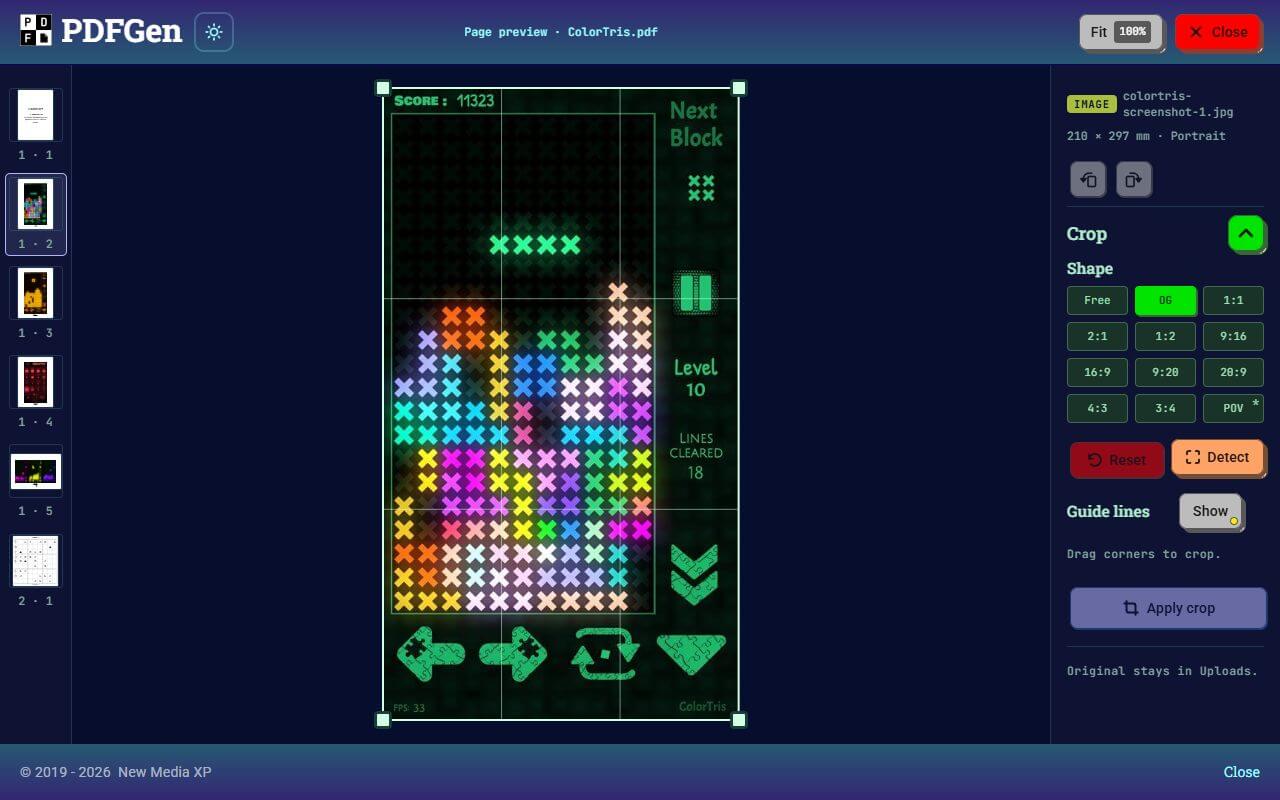
Double-click a page, or use Preview fullscreen, to open the page preview. For an image, it holds Crop. With the POV shape, Detect finds the edges of a sheet of paper in the photo, on your device, or you can move each corner yourself, and PDFGen straightens the page into a flat rectangle. The Document look then whitens the paper and darkens the ink, and B&W turns a text page pure black and white, which stays small and sharp in the PDF.
Plain crops, other looks, brightness, contrast and captions are there too, and your original file stays as it is in Uploads.
Your PDFs
- Quality: pick a preset from 300 dpi down to 100 dpi, or Fit to a file size: PDFGen makes the PDF at the best quality it finds under the size you give, or tells you the smallest size it can make.
- Passwords: open PDFs that have a password, and lock the PDFs you make with one, using AES-256 encryption. Passwords are never saved.
- Photo details: photos can record where and when they were taken, and with which camera. PDFGen leaves these details out unless you choose Keep, which works for JPEG photos that go in unchanged.
Private and offline
PDFGen loads its libraries from this site, so it makes no requests to other servers. Once you have opened it online, it keeps a copy of itself and opens without a connection, in a tab or installed as an app in Chrome, Edge or Safari. Your project saves itself in your browser, and Export downloads it as one ZIP file, not encrypted and without passwords, to carry on later or on another device.
PDFGen needs Chrome or Edge 119, Safari 17.4, Firefox 121 or newer. Autosave keeps one project, in the browser where you made it. Safari may delete a website's saved data if you go seven days of browsing without using it, so export the projects you want to keep. An app added to the Dock (macOS Sonoma or later) or the Home Screen starts with its own empty storage: open it online once, then use Import to bring a project in.
Built with
PDFGen writes its PDFs with its own code. It reads, shows and copies the pages of PDFs with PDF.js (opens in a new tab) from Mozilla, reads Markdown with markdown-it (opens in a new tab), and makes sudoku puzzles with SudokuGen.
Made something with PDFGen, or found a bug? Tell us
Links :
PDF.js is used under the Apache License 2.0, with the fonts and image decoders it comes with under their own licenses, and markdown-it under the MIT License. Sudoku is a registered trademark of Nikoli Co., Ltd. in Japan.
If you like this article,