10 Best PDF Web Apps of All Time : From 2000 to Today
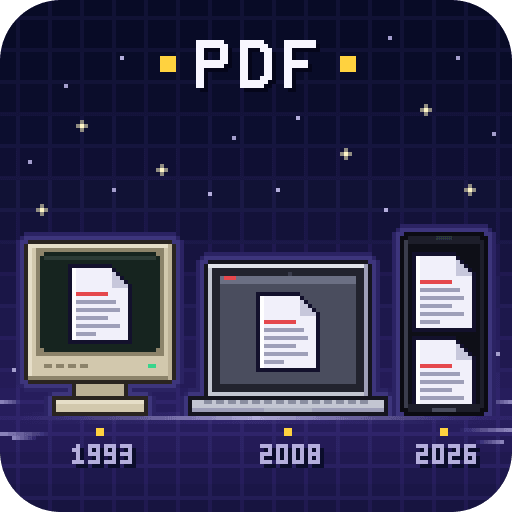
In 1993 Adobe launched Acrobat and a new file format to go with it: the Portable Document Format, or PDF. Adobe's co-founder John Warnock had described the idea in a short paper he called the Camelot Project: a document you could send to any computer that would look the same on every screen and every printer. Adobe made its reader free in 1994, PDF became an open international standard, ISO 32000, in 2008, and Adobe says people now open more than 400 billion PDFs in Acrobat every year.
For years, doing more than reading a PDF meant buying desktop software, and even reading one on the web meant installing Adobe's browser plug-in. Today you can merge, split, compress, edit, fill in, sign and make PDFs in a browser tab, often for free. These are the ten PDF web apps we think matter most: the ones that brought PDF tools to the browser, changed how people work with them or are simply among the best to use now. They are in release order, and each one ends with what you can do for free and where your files go. Most of these apps upload your files to their servers; a few never let them leave your device. At the end there is a bonus: a web app of our own.
1. Adobe Acrobat online
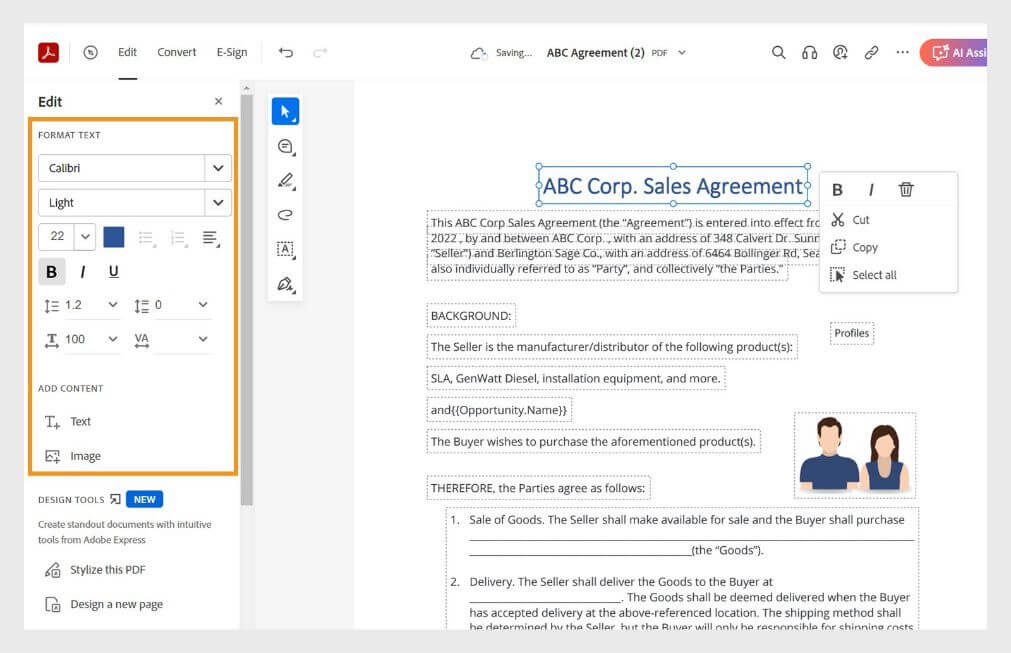
Adobe made PDF, and it took PDF tools to the web early. In April 2000 it opened Create Adobe PDF Online, a paid service that turned documents into PDFs for $9.99 a month. Acrobat.com followed in June 2008 and converted up to five documents for free. After Document Cloud in 2015, Adobe set out in 2020 to offer 20 free Acrobat online tools, each free once a day.
Today there are more than 25, from converting and compressing to e-signing and an editor that changes a PDF's own text and images, not just what sits on top of them. Without an account you get one free task. With a free account, filling in forms, signing, sharing and commenting stay free, and the other tools allow one free task every 30 days.
- Made by: Adobe
- First on: the web, 2000, as Create Adobe PDF Online
- Use it today: free tools at adobe.com/acrobat/online; an Acrobat Standard or Pro subscription unlocks them all
- Your files: uploaded to Adobe's cloud storage
2. PDF24 Tools
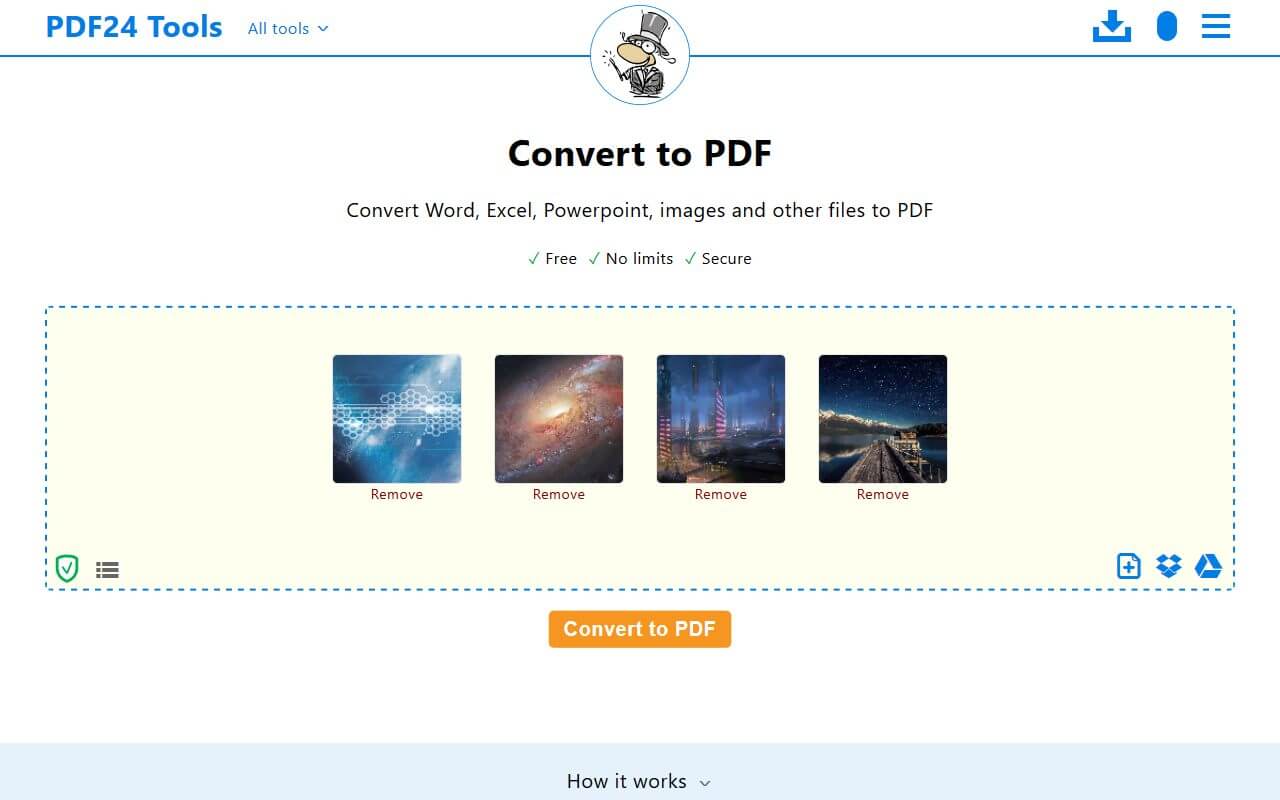
PDF24 began in Berlin in 2006 as a free Windows program first called PDFDrucker, German for "PDF printer": print from any program and out comes a PDF. Its maker, geek software, has kept building PDF tools ever since, and PDF24 Tools puts the whole toolbox in a browser, one tool per page: merge, split, compress, convert, edit and sign.
What sets it apart is the price: nothing. There is no sign-up and, in PDF24's words, there are "no artificial limits"; ads on the site pay for it. The Windows program, now PDF24 Creator, is still free and does the same jobs offline.
- Made by: geek software
- First on: Windows, 2006, as PDFDrucker (the online tools came later)
- Use it today: free at tools.pdf24.org with no sign-up, and as PDF24 Creator for Windows
- Your files: uploaded to PDF24's servers in the EU and deleted after one hour
3. PDFescape
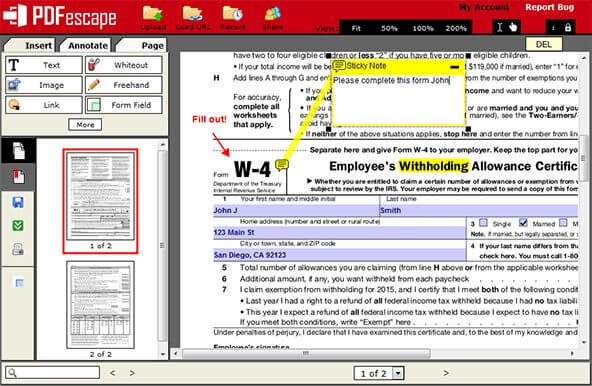
Changing a PDF used to mean buying Acrobat. PDFescape, which opened in 2007, put a free PDF editor in a web page. Upload a PDF, or load one from the web, then fill in its forms, type over it, white out text, and add images, links, sticky notes, highlights or form fields of your own.
Nearly twenty years later it still works in any browser with nothing to install, and it is still free for small PDFs. Avanquest, the software arm of the French group Claranova, bought it in 2021, when it had more than a million visitors a month.
- Made by: Avanquest, which bought it in 2021
- First on: the web, 2007
- Use it today: free at pdfescape.com for PDFs under 10 MB and 100 pages; Premium raises the limits and removes the ads
- Your files: uploaded to PDFescape's servers; a free account keeps up to 10 files for seven days
4. iLovePDF
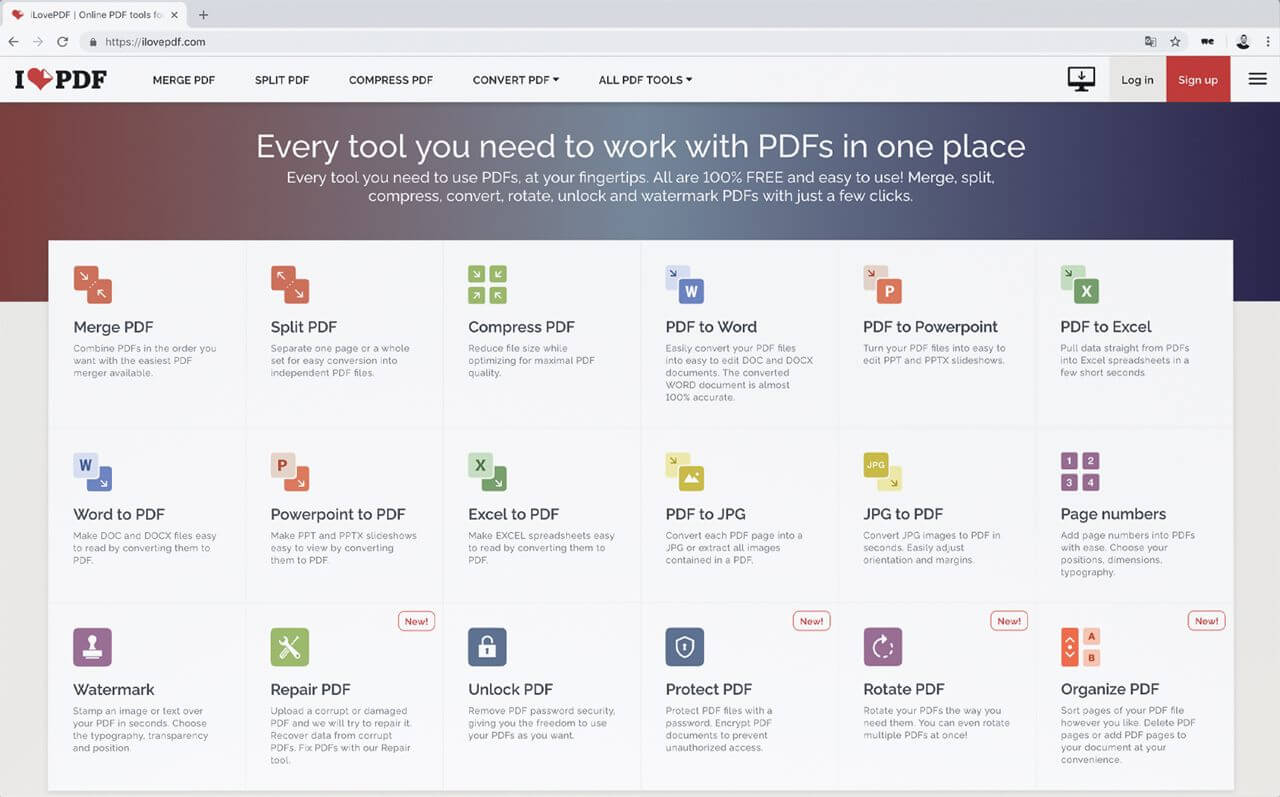
iLovePDF exists because one developer needed to merge two PDF files. Marco Grossi started it in his bedroom in Barcelona in 2010. Today the site is a grid of tools, one for each job: merge, split, compress, convert to and from Word, Excel, PowerPoint and JPG, add page numbers or a watermark. Drop in a file, press one button and download the result.
It works in more than 20 languages, and iLovePDF says it is one of the 50 most visited websites in the world. Its desktop app, out since 2018, works offline and processes files on your own computer.
- Made by: iLovePDF
- First on: the web, 2010
- Use it today: free at ilovepdf.com with limits per tool (merging takes up to 25 files at a time), or with a Premium subscription that lifts them; desktop and mobile apps too
- Your files: uploaded to iLovePDF's servers and deleted within two hours
5. PDF.js
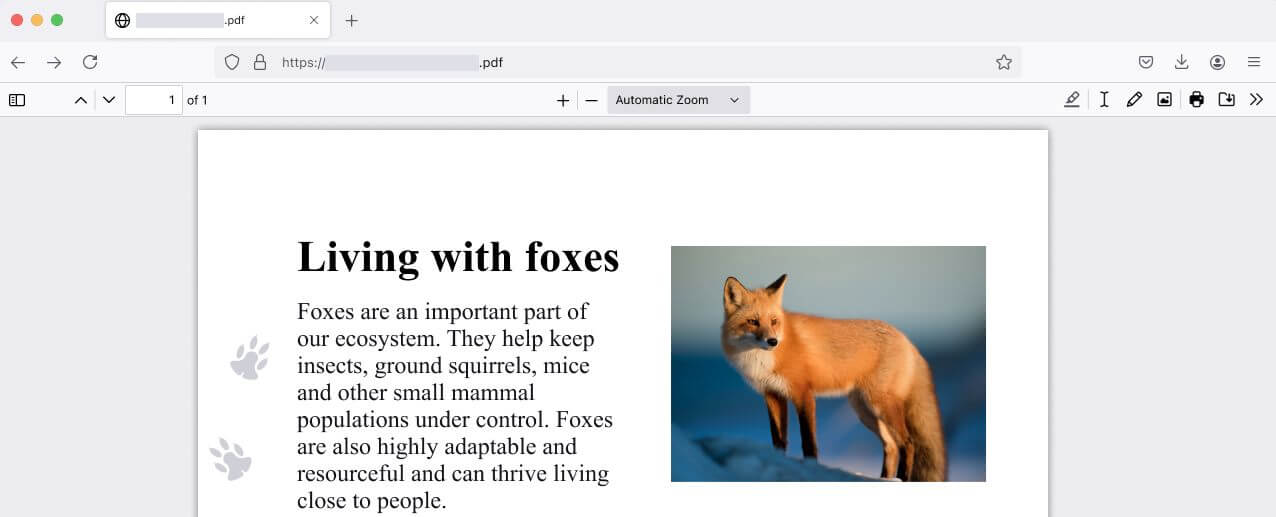
Chrome built a PDF viewer of its own into the browser in 2010. In June 2011 Andreas Gal and Chris Jones at Mozilla announced a different kind of viewer: PDF.js, a PDF reader written in JavaScript and built only from the web's own technologies, with no plug-in at all. In February 2013 it became Firefox's built-in PDF viewer, in Firefox 19.
It has kept growing. Since Firefox 106 in 2022 you can also write on a PDF, draw and add signatures, and later versions added images with alt text, highlighting and comments. Because PDF.js is open source, under the Apache License, other apps use it too: its Chrome extension has a million users, and many web apps show PDFs with it.
- Made by: Mozilla, started by Andreas Gal and Chris Jones
- First on: the web, 2011; Firefox's built-in viewer since Firefox 19 (2013)
- Use it today: built into Firefox on computers and Android, and free to try at mozilla.github.io/pdf.js
- Your files: stay on your device
6. Sejda
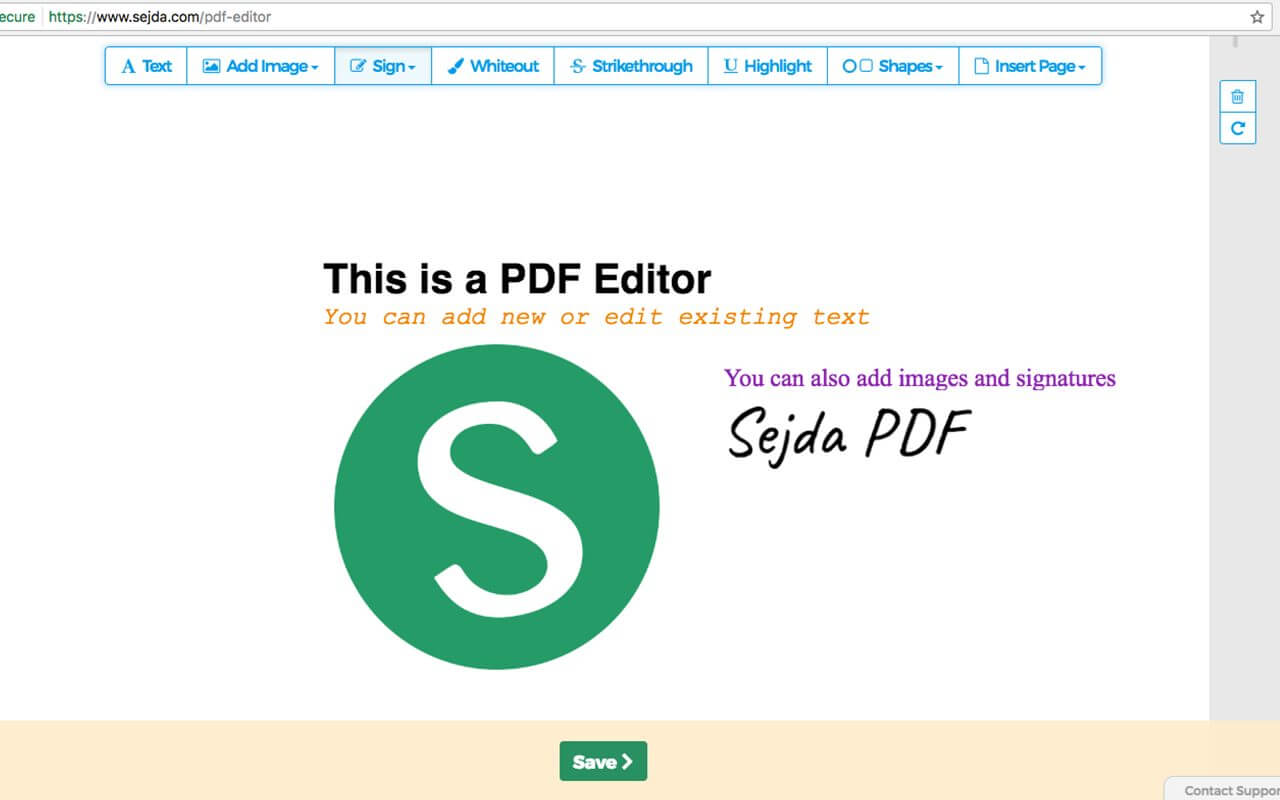
Sejda's engine is older than its website: it started in 2010 as an open-source project, and as the Sejda SDK it still powers PDFsam Basic, a free desktop app for splitting and merging PDFs. The online tools at sejda.com followed in 2012, from a company now based in Amsterdam. The name means "silk" in the dialect of Emilia-Romagna, in Italy, where one of its founders comes from.
Its best tool is the editor. Click any line of text already in a PDF and type to change it, as long as the page is not a scan. You can also white out, highlight and add shapes, images and signatures. For a one-off job, a Web Week Pass gives you seven days of the paid version for $5, with no subscription.
- Made by: Sejda
- First on: the web, 2012
- Use it today: free at sejda.com for up to 200 pages or 50 MB and three tasks an hour, or with the Web Week Pass, a monthly plan or Sejda Desktop
- Your files: uploaded to Sejda's servers and deleted after two hours; Sejda Desktop works on your own computer
7. Smallpdf
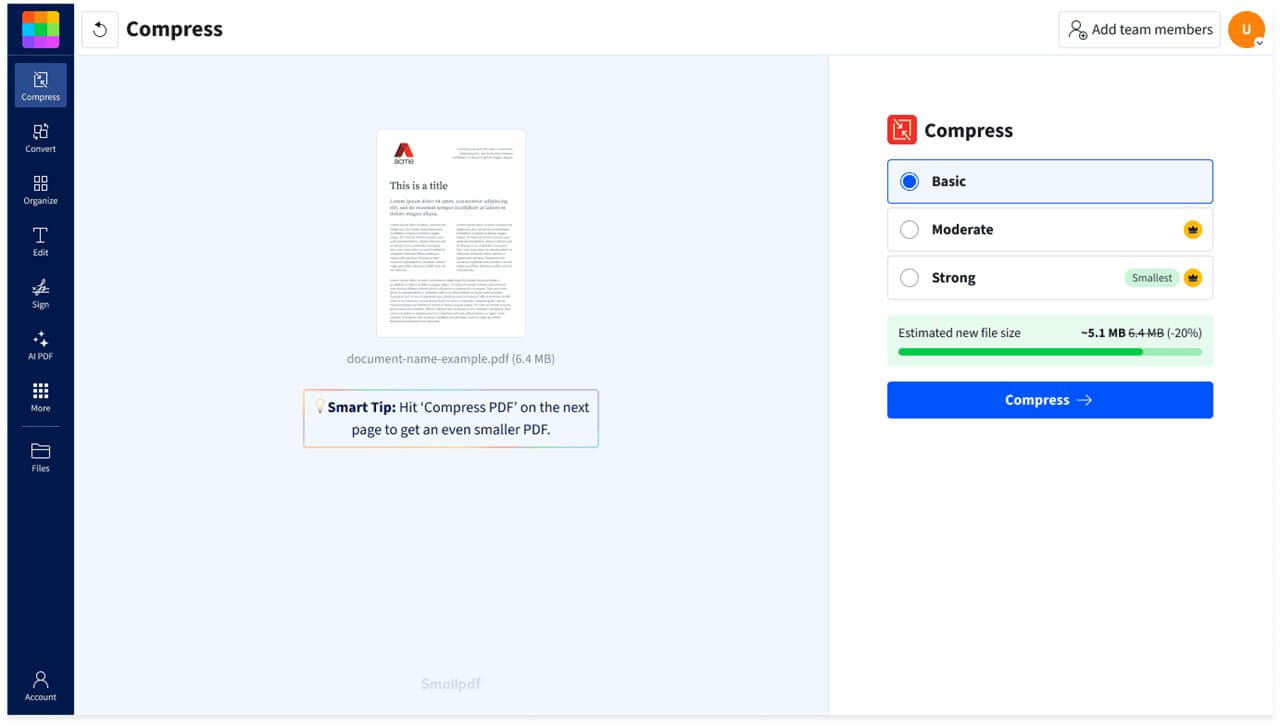
Smallpdf's three founders, Manuel Stofer, Mathis Büchi and Lino Teuteberg, were living in Korea, and their families kept having to email them large documents. So in 2013 they made a website with a single tool: one that made PDFs smaller.
It grew into a full set of tools to convert, edit, sign and organize PDFs, in one of the cleanest designs on this list. Smallpdf says it has more than 40 million users a month and is the most visited website in Switzerland.
- Made by: Smallpdf
- First on: the web, 2013
- Use it today: free at smallpdf.com with a daily limit, or with a Pro subscription, and in its mobile apps
- Your files: uploaded to Smallpdf's servers in Ireland and deleted after one hour
8. Kami
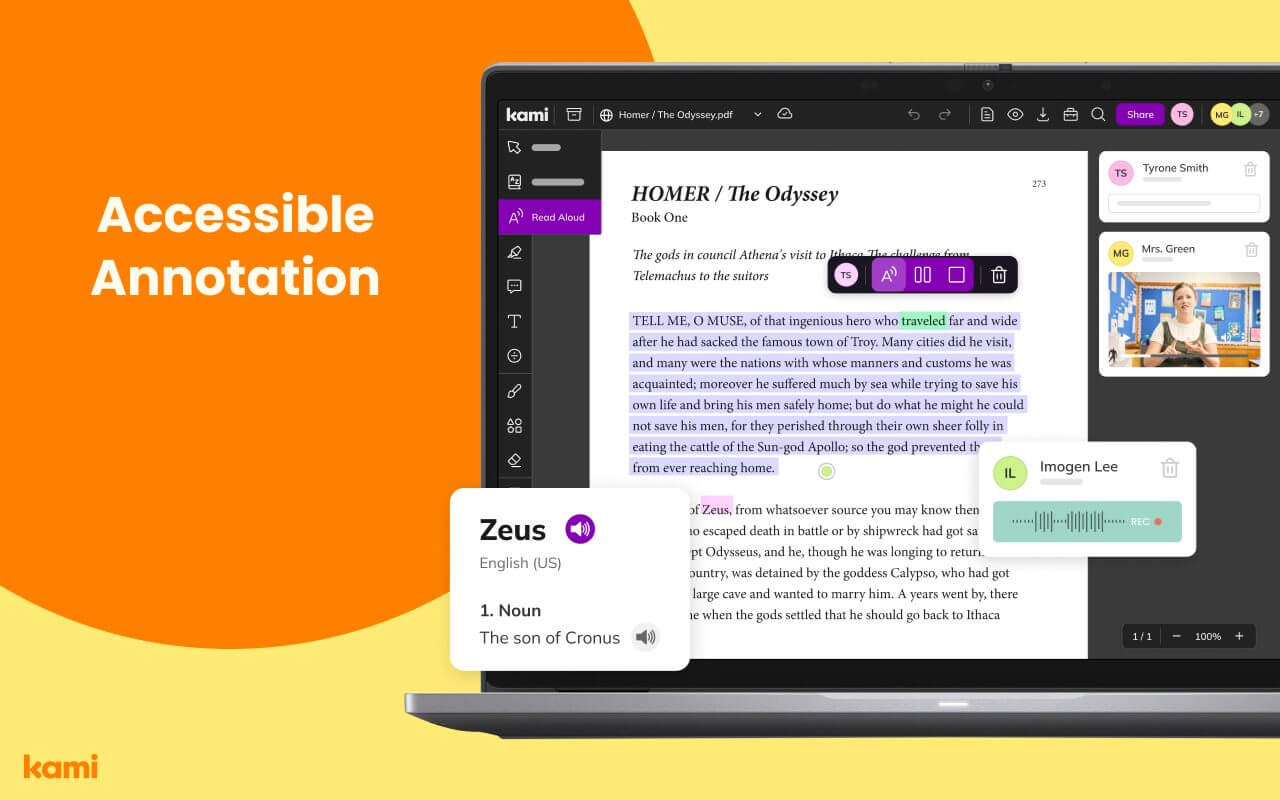
Kami began in Auckland, New Zealand, as Notable PDF, a PDF annotator for Chrome that friends from the University of Auckland started in late 2013 and launched in 2014. It worked with Google Drive from the start and, renamed Kami, found its real home in classrooms.
Teachers hand out a PDF or a worksheet through Google Classroom, Canvas, Schoology or Microsoft Teams; students write, type, draw and highlight on it, and teachers answer with comments, voice recordings or videos. Kami can also read a page aloud and look up words. It says more than 50 million teachers and students use it. In 2024 Boston Ventures, an American investment firm, acquired Kami at a value of over NZ$300 million, and it became a US company.
- Made by: Kami
- First on: Chrome, 2014, as Notable PDF
- Use it today: free Basic plan at kamiapp.com and as a Chrome extension; paid Teacher, School and District plans add more tools and the links to Google Classroom, Canvas and the rest
- Your files: saved to your Google Drive or OneDrive, with your annotations also kept in Kami's cloud
9. DocHub
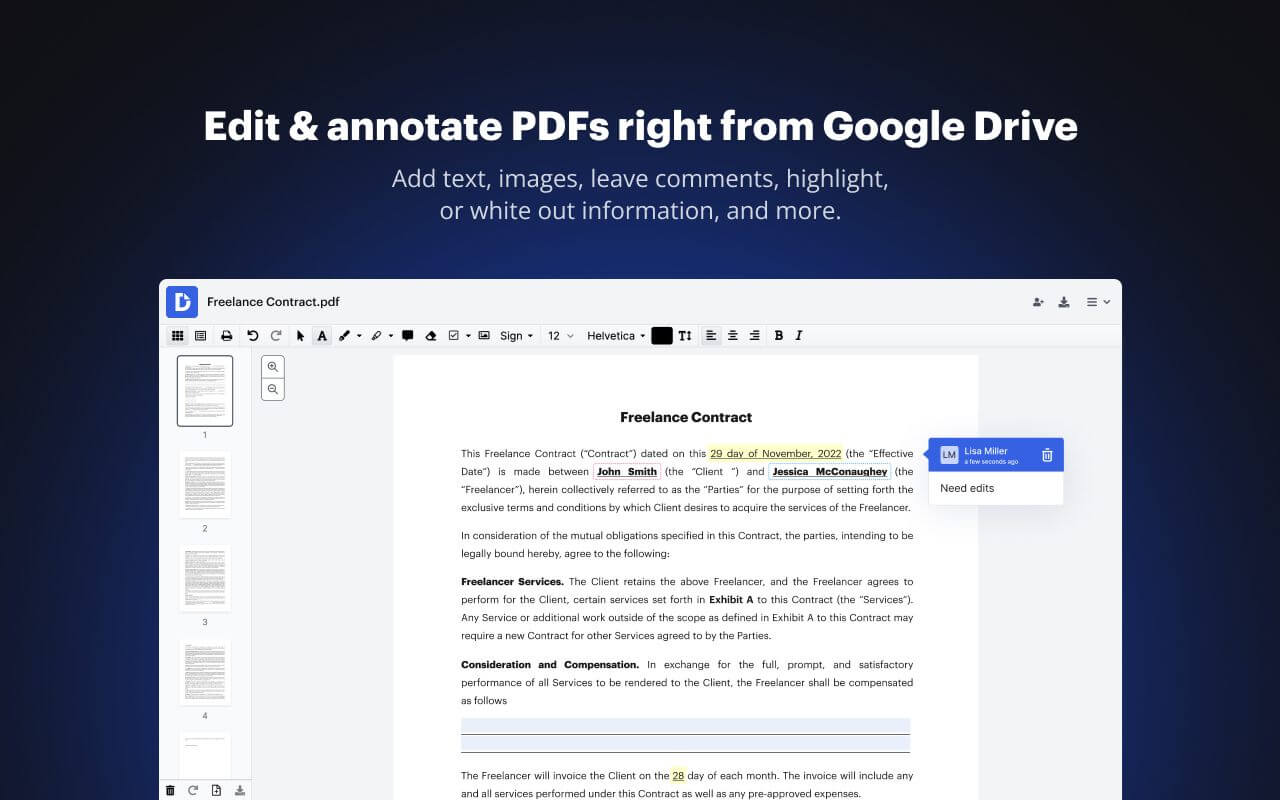
In late 2013 Chris Devor, who ran a small software company, was unhappy with every way he found to sign a PDF from Gmail. DocHub, launched in 2014, was his answer: it opens PDFs straight from Gmail and Google Drive, and lets you add text, draw, highlight, comment, fill in forms and sign.
It suits the paperwork that arrives by email: open the attachment, fill it in and sign it, then send it back or send it on for others to sign. Its listing in the Google Workspace Marketplace counts more than 57 million installs, and in 2022 airSlate, the company behind pdfFiller and signNow, bought DocHub.
- Made by: airSlate, which bought it in 2022
- First on: the web, 2014
- Use it today: at dochub.com and as a Google Workspace add-on, free for three uses a month, or with a Basic or Pro subscription
- Your files: uploaded to DocHub's servers and kept in your account
10. Stirling-PDF
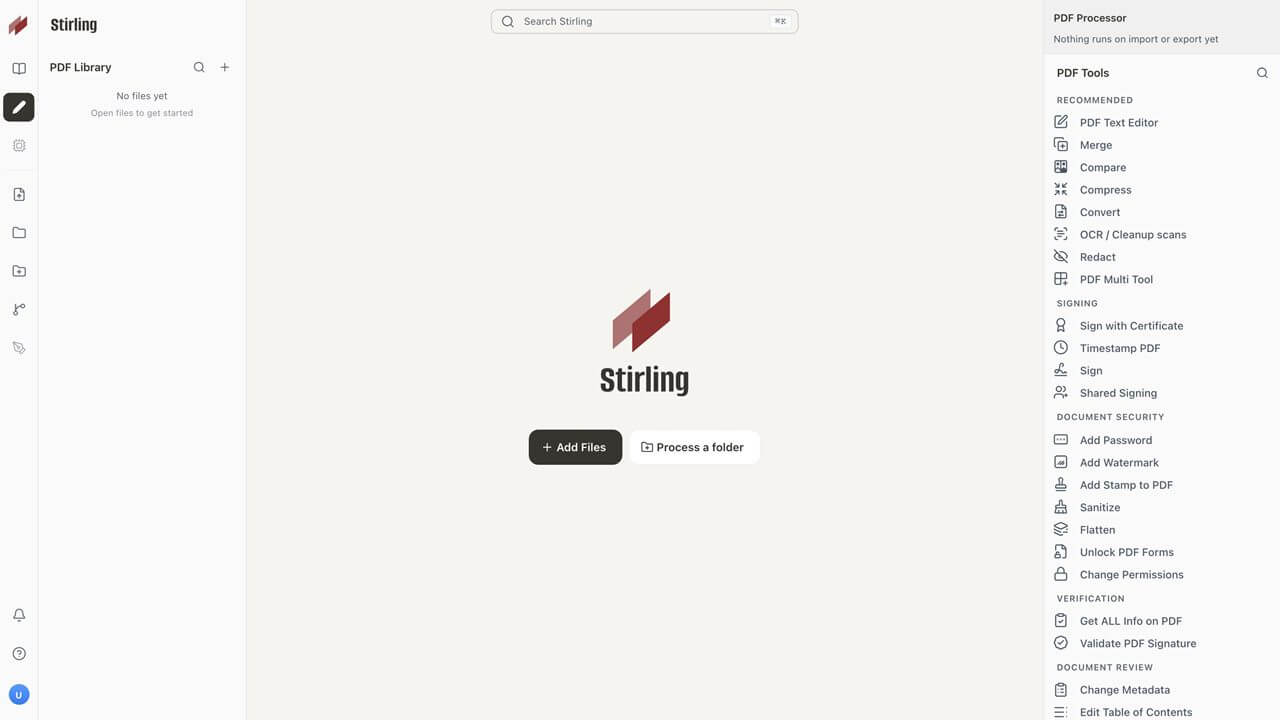
Stirling-PDF began in January 2023 as a weekend project: Anthony Stirling wanted to sign a PDF with a tool he could trust, built one with four features and posted it on Reddit. It is a PDF toolbox you run yourself, on a server with a single Docker command or as a desktop app, so your files never have to leave your own machines.
It caught on fast: it has about 96,000 stars on GitHub, and its makers count more than 30 million downloads. It now has more than 50 tools, from merging and compressing to redaction, signing with certificates and OCR, which makes scanned pages searchable. In 2024 the project became a company, Stirling PDF Inc., and its core is open source under the MIT License.
- Made by: Stirling PDF, started by Anthony Stirling
- First on: your own server (Docker), 2023
- Use it today: free on your own server for up to five users, or as a desktop app for Windows, Mac and Linux; paid Team and Enterprise plans, and a hosted version at stirling.com
- Your files: stay on your own computer or server, unless you use the hosted version
Honorable mentions
- pdfFiller (2008): airSlate's online form filler, best known in the US for tax and legal forms such as the W-9, with over 25 million fillable documents in its library. It comes with a 30-day free trial, then a subscription.
- Xodo: the PDF apps of Apryse (formerly PDFTron) for phones and computers, plus web tools that do most of their work on your own device.
- Overleaf (2011): write LaTeX, the typesetting language of many science papers, in a browser and get a typeset PDF, alone or together. It began as WriteLaTeX, joined with ShareLaTeX in 2017, and says it has over 30 million users, many of them researchers.
- BentoPDF (2025): a free, open-source toolbox of over 100 PDF tools that all run on your own device, in your browser. A year after its first release it has over 16,000 stars on GitHub.
Bonus: PDFGen (our app)
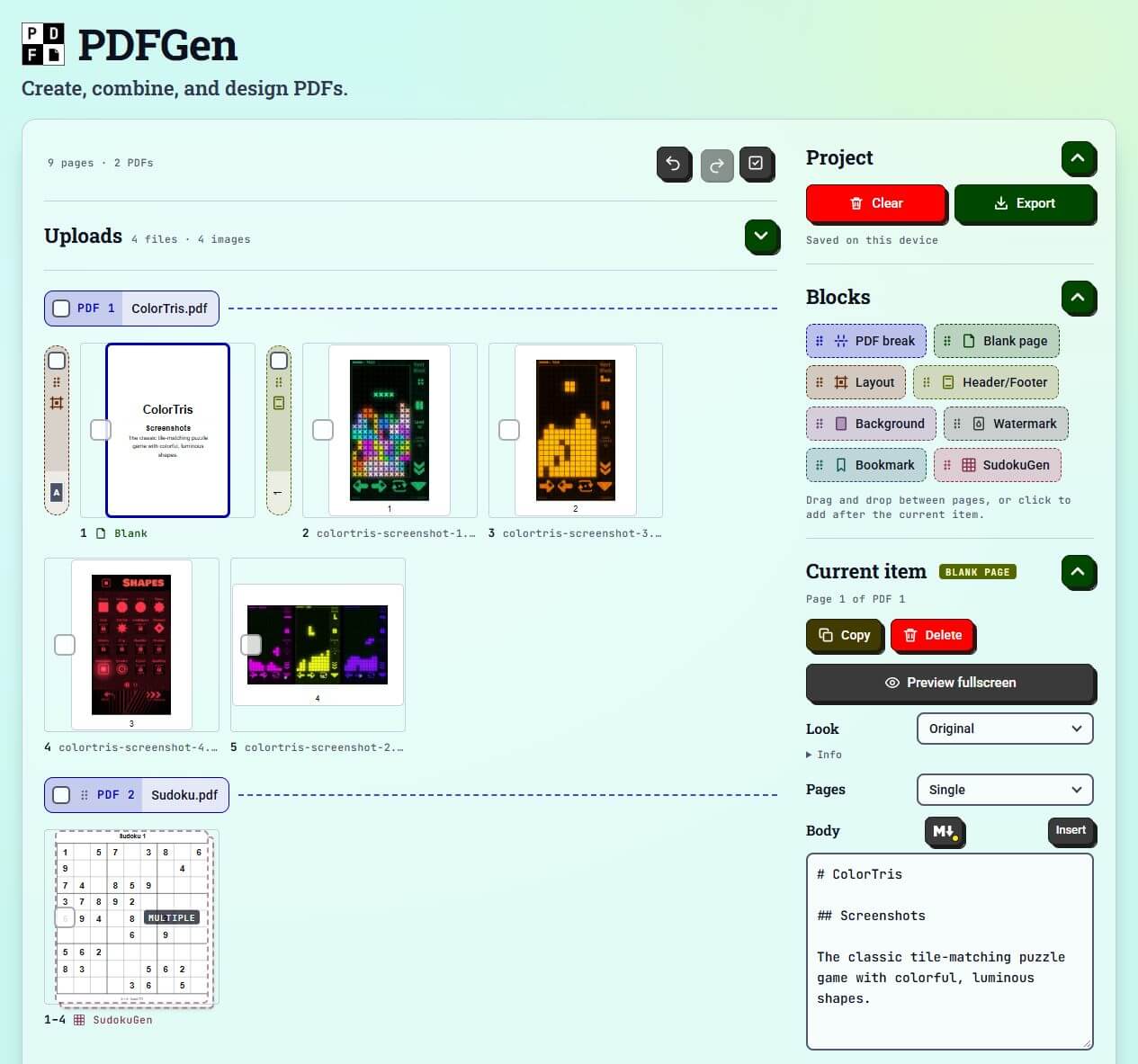
We could not write about PDF web apps without mentioning our own: PDFGen makes PDFs from images, PDFs and Markdown text in your browser. Like PDF.js, which it uses to read PDFs, it works on your device: your files are never uploaded, and once you have opened it online it works offline too. Combine files or split them into several PDFs, turn a photo of a page into a clean scan, and add page numbers, backgrounds, watermarks and sudoku puzzles. It is free, with no account.
Everybody has a favorite way to work with PDFs, and these are ours. Did we miss yours? Tell us
Sources :
- PDF's history: Acrobat's 25th anniversary (opens in a new tab), the free reader on TidBITS (opens in a new tab), ISO 32000-1 (opens in a new tab), 400 billion PDFs a year (opens in a new tab), Chrome's PDF viewer (opens in a new tab)
- Adobe Acrobat online: Create Adobe PDF Online on MacTech (opens in a new tab), Acrobat.com's public beta (opens in a new tab), Document Cloud on The Next Web (opens in a new tab), the free online tools in 2020 (opens in a new tab), Acrobat online FAQ (opens in a new tab)
- PDF24 Tools: PDF24 Tools (opens in a new tab), PDF24 FAQ (opens in a new tab), PDF24 Merge PDF (opens in a new tab), PDF24 Creator on Wikipedia (opens in a new tab)
- PDFescape: PDFescape on Wikipedia (opens in a new tab), Avanquest buys PDFescape (opens in a new tab), PDFescape plans (opens in a new tab)
- iLovePDF: iLovePDF's tenth anniversary (opens in a new tab), iLovePDF press kit (opens in a new tab), iLovePDF at the PDF Association (opens in a new tab), iLovePDF privacy policy (opens in a new tab)
- PDF.js: Andreas Gal's announcement (opens in a new tab), Firefox 19 release notes (opens in a new tab), PDFs in Firefox (opens in a new tab), PDF.js (opens in a new tab)
- Sejda: about Sejda (opens in a new tab), sejda.com in 2012 (opens in a new tab), Sejda prices (opens in a new tab), Sejda SDK on GitHub (opens in a new tab)
- Smallpdf: Smallpdf on Wikipedia (opens in a new tab), about Smallpdf (opens in a new tab), Smallpdf on safety (opens in a new tab)
- Kami: about Kami (opens in a new tab), Notable PDF on TechRepublic (opens in a new tab), Kami's US investment on IT Brief (opens in a new tab), Kami with Google Drive (opens in a new tab)
- DocHub: Chris Devor on DocHub (opens in a new tab), DocHub on Wikipedia (opens in a new tab), airSlate buys DocHub on VentureBeat (opens in a new tab), DocHub on Google Workspace Marketplace (opens in a new tab)
- Stirling-PDF: Stirling-PDF's story (opens in a new tab), about Stirling PDF (opens in a new tab), Stirling-PDF on GitHub (opens in a new tab), Stirling-PDF plans (opens in a new tab)
- Honorable mentions: about pdfFiller (opens in a new tab), pdfFiller services (opens in a new tab), Xodo (opens in a new tab), Overleaf on Wikipedia (opens in a new tab), about Overleaf (opens in a new tab), BentoPDF (opens in a new tab)
PDF is an open standard, ISO 32000. Adobe, Acrobat and Reader are trademarks of Adobe, and Firefox is a trademark of the Mozilla Foundation; other app names are trademarks of their owners. Screenshots are © their makers and come from their official press material, help pages, store listings and project pages. The pixel-art illustration at the top is our own, and the PDFGen screenshot is from our app.
If you like this article,