"Your Files Never Leave Your Device" : How to Check a Web App's Claim
Some web apps for PDFs, photos and documents promise that "your files never leave your device." It is a promise worth having, and you don't have to take it on trust: your browser can list every request a page makes, and you can watch that list while the app works.

This article explains what the promise means: what an upload is, and how an app can do its work without one. Then come four checks anyone can do, with the steps for Chrome, Edge, Firefox and Safari: watch the Network panel, do the job offline, read the privacy policy and read the code. We tried each one on our own PDF app, PDFGen. The article ends with what these checks can't tell you.
Uploading versus working on your device
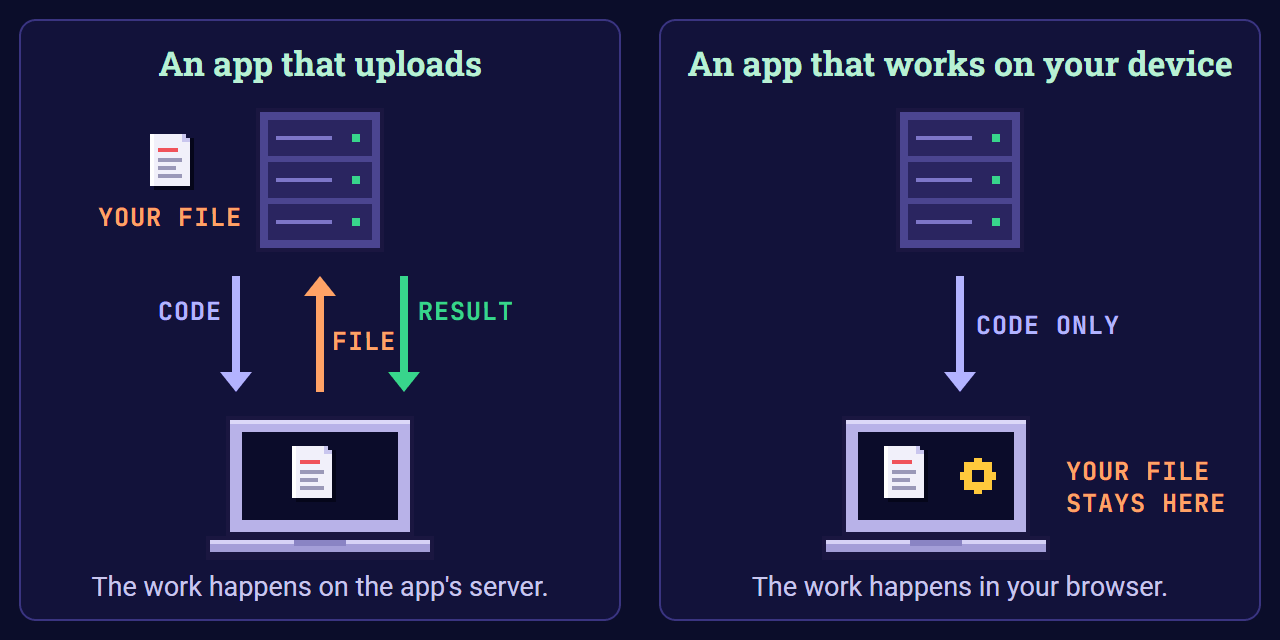
To upload a file is to send a copy of it over the internet. In an app that uploads, your browser sends your file to the app's server, the server does the work, such as merging, compressing or converting, and your browser downloads the result. Most of the apps in our list of the best PDF web apps work this way, and the list says for each one where your files go.
A web app can also do the work in your browser. When you pick a file or drop it on the page, the File API lets the page read its contents on your device, the way a desktop program opens a file, and nothing is sent anywhere unless the page's own code sends it. The work runs in JavaScript or in WebAssembly, a fast, low-level format that languages such as C, C++ and Rust can be compiled to. Heavy jobs can run in Web Workers, in the background, so the page doesn't freeze while they run.
Either way, the app itself comes from a server: your browser downloads its code like any other web page. A service worker, a script that sits between the app and the network, can keep a copy of that code on your device, so the app opens again without a connection.
Uploading isn't wrong in itself. Some jobs need a server: keeping a document in your account, sharing it with a class or sending it to someone to sign. Many apps that upload say plainly where your files go and how long they stay there. What matters is that the promise on the page matches what the app does, and that is something you can check.
1. Watch the Network panel
Chrome, Edge, Firefox and Safari all come with developer tools, and their Network panel lists the requests a page makes: each file it downloads and everything it sends. You don't need to read code to use it.
- Load the app and wait until it is ready.
- Open the Network panel. In Chrome and Edge, press F12 or Ctrl+Shift+I (Cmd+Option+I on a Mac) and choose the Network tab. In Firefox, Ctrl+Shift+E (Cmd+Option+E on a Mac) opens it directly. In Safari on a Mac, first turn on "Show features for web developers" in Settings > Advanced, then choose Develop > Show Web Inspector and the Network tab.
- Clear the list with the Clear network log button in Chrome and Edge, or the trash can in Firefox, so it shows only what happens next. Safari's list starts when Web Inspector opens, so open it just before the next step.
- Add a file the way the app asks, then do the job: make the PDF, shrink the photo, sign the form.
- Read the list.
An upload is a request that carries your file. It usually uses the method POST or PUT, and its size is close to your file's, or bigger. To find one, type method:POST in the filter box, which Chrome, Edge and Firefox all understand, or choose Fetch/XHR (XHR in Firefox) to list the requests made with fetch and XMLHttpRequest, the usual ways a page's code sends a file. Click a request to see what it sent: the Payload tab in Chrome and Edge shows the form data it carried, binary data included, and the Request tab shows its parameters in Firefox. Data can also travel through a WebSocket, a connection that stays open; the Socket filter (WS in Firefox) lists those.
Other rows appear too, and they are normal. Many apps download more of their own code the first time you use a feature, with GET requests, which ask for a file and send no file of their own, only an address and a few details about your browser. Rows whose address starts with blob: point to data already inside your browser, such as the preview of a photo you added. The status bar at the bottom adds it all up: the number of requests and how much was transferred. On a phone, the Network panel needs a computer: Safari on an iPhone or iPad connects to Safari on a Mac with a cable, and Chrome on Android to Chrome on a computer over USB.
PDFGen, tested: we opened PDFGen on our live site in Microsoft Edge, opened DevTools, cleared the Network panel and added two files, an 84 KB screenshot and a one-page PDF. Then we added both as pages and made an 86 KB PDF. The panel listed 23 requests, all to www.newmediaxp.com and all downloads of PDFGen's own code, such as PDF.js, which PDFGen uses to read PDFs, and the Web Worker it uses to process images, plus one blob: address for the screenshot. The status bar read 0 B transferred: the code came from PDFGen's offline copy, so nothing crossed the network, and no request sent any data.
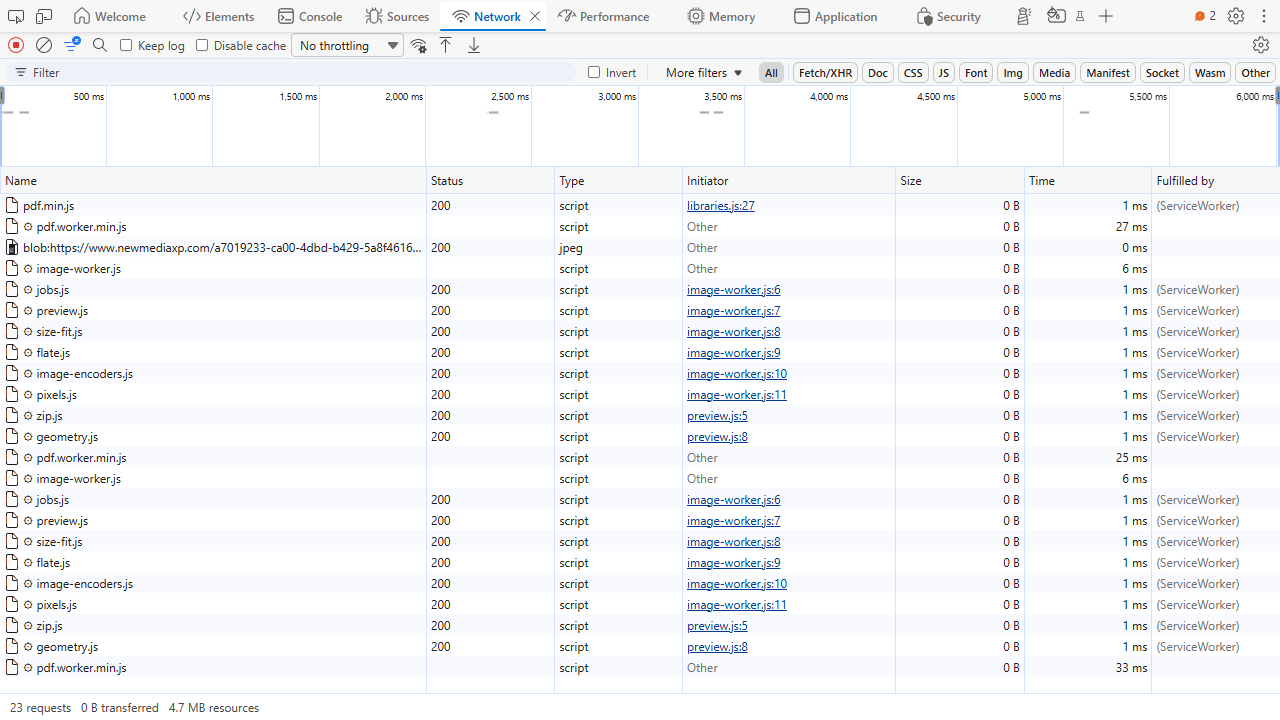
We ran the same steps, and the offline test below, on a copy of our site served from our own computer as well, so that its server kept a log of everything it received: 343 requests, every one a GET with an empty body.
One thing on the live site came before we cleared the panel. As the page loads, a few requests go to addresses on our site that start with /cdn-cgi/, and one of them is a POST of about 16 KB, sent a second after the page opens and before any file is added. They come from Cloudflare, which hosts our website and adds them to the page to protect the site from bots. They carry none of your files, and the Network panel is exactly how you can see that for yourself.
2. Do the job offline
The second check needs no developer tools at all. An app that does its work on your device can do it without a connection.
- Open the app online, so it can load what it needs.
- Go offline: turn on airplane mode, or turn off Wi-Fi and unplug any network cable. In Chrome and Edge you can instead choose Offline in the Network panel's throttling menu, and in Firefox in its Throttling menu.
- Do the job: add a file and make the PDF, the smaller photo or whatever the app makes. If the app says it works offline, reload it first: it should still open.
If the job works, the work happened on your device. If it fails, that doesn't prove the app uploads: some apps simply need to download more of their code when you use a feature.
This test has a limit: working offline proves where the work is done, not that nothing is sent later. An app could keep a copy of your file and send it once you are back online. Browsers even have a feature for sending later: Background Sync, which some browsers support, lets a web app put a task off until there is a stable connection, the way an email app can send a message you wrote offline, and Chrome's developers describe it as a way for data to reach the server even if you close the tab. So when you go back online, keep watching the Network panel for a few minutes, with Keep log turned on (Persist Logs in Firefox, Preserve Log in Safari) so a reload doesn't clear it. In Chrome, Application > Background services > Background sync can also record sync events for up to three days, even while DevTools is closed.
PDFGen, tested: with PDFGen open, we chose Offline in Edge's Network panel and reloaded. The page came from PDFGen's offline copy, our project was still there, and the same 86 KB PDF came out. Only Cloudflare's script showed in red, a download that failed without a connection. Back online, we waited and reloaded again, and no request sent any data. The page itself came over the network, about 16 KB, because PDFGen fetches it whenever there is a connection so that a new version shows at once; its code came from the offline copy.
3. Read the privacy policy
The Network panel shows what an app does today, in your browser. The privacy policy is the company's promise, and it covers what your browser can't see. Look for four things: whether files are uploaded, where they are processed, how long they are kept, and whether they are used for anything besides your job.
"Deleted after one hour" is an honest answer from an app that uploads, but it means the file did leave your device: a copy sat on someone else's server while the job ran, and for a while after. PDF24, for one, says it processes files on servers in data centers in the EU and deletes them automatically within one hour of processing. Nothing in your browser can confirm what happens on a server, so there you rely on the company's word.
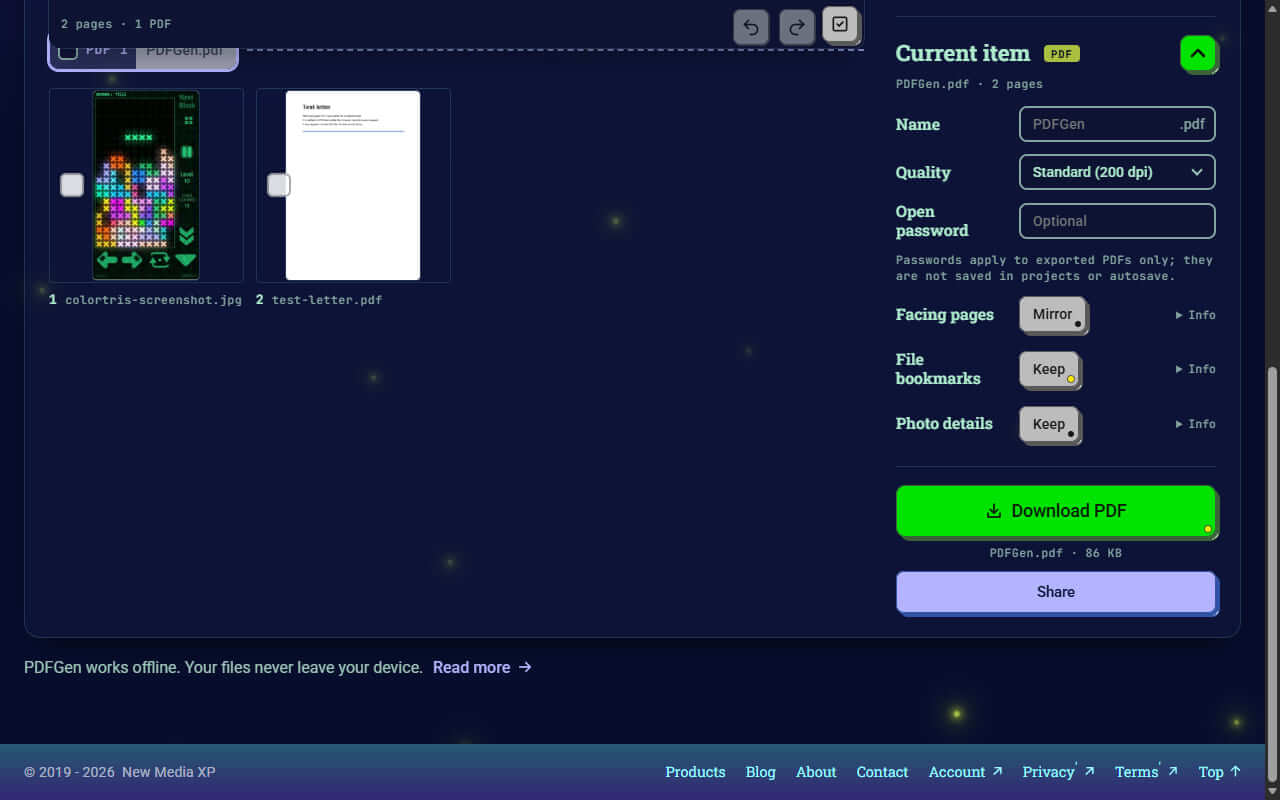
An app that works on your device should say so plainly, and say what it keeps. PDFGen's privacy policy (opens in a new tab) says that the files you add are never uploaded and that PDFGen collects nothing. It lists what PDFGen saves in your browser, such as your project and its offline copy, and it notes that Cloudflare, which hosts our website, receives each request with your IP address and browser details.
4. Read the code
Open-source apps publish their code, so anyone can read what it sends and where. PDF.js, the PDF reader built into Firefox, is one: its code is public under the Apache License. For a hosted web app, though, the code that runs is the code the website sends you, which may not be exactly the published version, so open source makes checking possible rather than automatic.
Open source or not, every web app's code reaches your browser, and you can read it there: the Sources panel in Chrome and Edge, the Debugger in Firefox and the Sources tab in Safari's Web Inspector list the files the page loaded. Many apps squeeze their code into a compact form that is hard to read, so this check suits people who read code.
PDFGen, read: PDFGen isn't open source, but we serve its own code as we write it, so you can read it in the Sources panel. Its modules never call fetch, XMLHttpRequest, sendBeacon or WebSocket, the usual ways a page sends data. You will find fetch in our service worker and in PDF.js, where it only downloads our own files. What it loads, it loads from our own site: its modules, its libraries, and the extra files PDF.js asks for when a PDF needs them, such as fonts and character maps. A file leaves PDFGen only when you choose: as a download, or through Share, which hands your PDF to your device's share sheet.
What these checks don't cover
- Analytics: many sites report what you do on a page to an analytics service, often with sendBeacon, a browser feature made for sending analytics data in a POST request. Those reports show up in the Network panel, often addressed to another company. They can tell a company you were there without carrying your file, so read what they send too. PDFGen has no analytics.
- Fonts and libraries from other servers: many sites load fonts or code from a content delivery network. Those requests are downloads and carry none of your files, but every request tells a server your IP address, and often the page you are on. Google Fonts, for one, explains that its requests include your IP address, the address requested, and headers naming your browser and the page. PDFGen loads its fonts and libraries from our own site.
- Browser extensions: an extension with access to your data on all the websites you visit can read, request or change data on every page you open, as the Chrome Web Store's help explains. These checks test the app, not your extensions, so to see the app on its own, test it in a browser profile without extensions.
- The server's side: once a file has been uploaded, nothing in your browser can show where it goes next. For that, there is only the privacy policy.
Both of our web apps work on your device. PDFGen makes PDFs from your images, PDFs and Markdown text in your browser, and SudokuGen creates, solves and checks its sudoku puzzles there too. Once you have opened them online, both work offline, so you can try every check in this article on them.
Did you check an app and find something we should add here? Tell us
Sources :
- How web apps handle files: Using files from web applications (opens in a new tab), WebAssembly (opens in a new tab), Web Workers API (opens in a new tab), Service Worker API (opens in a new tab) on MDN
- Sending later: Background Synchronization API (opens in a new tab) on MDN, Introducing Background Sync (opens in a new tab), Background services in Chrome DevTools (opens in a new tab)
- Chrome and Edge: Open Chrome DevTools (opens in a new tab), Network features reference (opens in a new tab), Sources panel (opens in a new tab), remote debugging on Android (opens in a new tab), Edge DevTools overview (opens in a new tab), Edge's Network tool (opens in a new tab)
- Firefox: Network Monitor (opens in a new tab), its toolbar (opens in a new tab), request list (opens in a new tab), request details (opens in a new tab), throttling (opens in a new tab), Debugger (opens in a new tab)
- Safari: enabling features for web developers (opens in a new tab), Develop menu (opens in a new tab), Web Inspector (opens in a new tab), inspecting iOS and iPadOS (opens in a new tab), Network tab on WebKit (opens in a new tab)
- What the checks don't cover: sendBeacon on MDN (opens in a new tab), Google Fonts FAQ (opens in a new tab), extension permissions on Chrome Web Store Help (opens in a new tab)
- Privacy policies: PDF24 FAQ (opens in a new tab), PDFGen privacy policy (opens in a new tab)
- PDF.js: PDF.js (opens in a new tab), PDF.js on GitHub (opens in a new tab)
Chrome is a trademark of Google LLC, Microsoft Edge is a trademark of Microsoft, Firefox is a trademark of the Mozilla Foundation, and Safari is a trademark of Apple Inc.; other app names are trademarks of their owners. The screenshots are our own: one shows the DevTools of Microsoft Edge, the other PDFGen. The pixel-art illustration at the top and the diagram are our own too.
If you like this article,